




MetaMask is a cryptocurrency wallet available as a browser extension or mobile app that takes 5–10 minutes to install: download it from the official metamask.io website, create a password, save the 12-word seed phrase—and the wallet is ready to receive and send cryptocurrency. Next, we’ll look at which version to choose and how to complete the installation without errors.
What is MetaMask and what is it used for
MetaMask is a non-custodial crypto wallet: a program that stores your private keys locally on your device and allows you to send, receive, and store cryptocurrency, as well as connect to decentralized applications (DeFi protocols, NFT marketplaces, and games) directly from your browser or phone.
The word “non-custodial” is key here: unlike an exchange wallet, where the exchange effectively controls the coins, in MetaMask only you have the keys to the wallet. This gives you full control over your funds, but also full responsibility—if you lose access, it can only be restored by whoever has the seed phrase saved.
With MetaMask, you can: store cryptocurrency on the Ethereum network and dozens of compatible networks (BNB Chain, Polygon, Arbitrum, Optimism, and others); send and receive coins and tokens; connect to DeFi websites for swaps, staking, and lending; buy, sell, and store NFTs; interact with smart contracts—that is, confirm transactions that execute code on the blockchain.
MetaMask does not store cryptocurrency “inside the program”—it stores the keys that prove the coins on the blockchain belong to you. Deleting the app does not delete your coins: they remain on the blockchain and can be accessed by restoring the wallet with the seed phrase.
MetaMask is not the only wallet of this type—there are Trust Wallet, Rabby, Coinbase Wallet, and others—but it has become the de facto standard for working with Ethereum and compatible networks: most DeFi websites and NFT marketplaces primarily support connecting through it.
What versions of MetaMask are available and how do they differ
MetaMask comes in three forms: a browser extension for computers, a mobile app for iOS and Android, and a built-in wallet in the MetaMask mobile browser. All three are linked to the same seed phrase and essentially provide access to the same wallet if you use the same recovery phrase during setup.
The browser extension is the most common option. It installs in Chrome, Firefox, Edge, or Brave and appears as a fox icon in the toolbar. The extension opens over any website with one click and automatically offers to connect when you visit a Web3-enabled site—for example, a decentralized exchange or NFT marketplace.
The mobile app is a separate smartphone program that combines wallet and browser features: it includes a built-in Web3-enabled web browser that lets you visit DeFi websites directly from your phone without installing anything extra.
There is no separate official “desktop app” for MetaMask that installs like a regular program rather than a browser extension—the company deliberately does not release such a version to avoid creating additional opportunities for counterfeits. Anything calling itself “MetaMask Desktop App” outside the browser extension is either third-party software or a fraudulent counterfeit and should not be trusted.
| Version | Where it works | What it is convenient for | Feature |
|---|---|---|---|
| Browser extension | Chrome, Firefox, Edge, Brave | Working with DeFi and NFTs on a computer | Opens by clicking the icon; no separate browser is needed |
| Mobile app | iOS, Android | Transfers and purchases on the go | Includes a built-in Web3 browser |
| Mobile Web3 browser | Inside the MetaMask app | Accessing DeFi websites from a phone | No additional programs need to be installed |
| “Desktop App” outside the browser | — | — | Does not officially exist; a sign of a counterfeit |
What to choose: if you work on a computer, install the extension in the browser you use most often. If you plan to manage your wallet from your phone or use both forms in parallel, start with the mobile app and connect the computer extension later using the same seed phrase. Keeping the wallet in several places at once is not dangerous—the danger is losing control of the seed phrase itself, not the number of installed copies of the app.
How to download and install MetaMask on a computer
MetaMask for computers should only be installed from the official metamask.io website or your browser’s official extension store—the process takes 3–5 minutes and is the same for Chrome, Firefox, Edge, and Brave, with minor differences in the store name.
Download only from an official source
Search results for “MetaMask download” regularly include ads linking to fake websites and counterfeit extensions with similar names and logos. Installing such a counterfeit means that all funds you transfer to it will end up with scammers. The correct address is only metamask.io, with no variations in spelling.
Step-by-step installation through the official website:
For Brave, the process is identical to installing in Chrome, since Brave is built on the same engine and uses the Chrome Web Store: simply follow the link from MetaMask’s official website and click “Add to Brave”.

How to verify that the extension is genuine if you still have doubts after installation: open your browser’s extensions page (in Chrome — chrome://extensions), find MetaMask, and compare the extension ID with nkbihfbeogaeaoehlefnkodbefgpgknn — this is the official MetaMask extension ID in the Chrome Web Store. If the ID differs, delete the extension immediately and do not enter any data into it.
How to make sure you are on the correct website
Check three things: the domain must be exactly metamask.io, with no extra characters or subdomains; the browser must show a padlock icon (a secure connection); and the download link must lead specifically to your browser’s official extension store, not to a third-party .exe or .zip file — MetaMask is never distributed through such files.
After installation, the browser may immediately open a tab with the MetaMask welcome screen — this is normal; the next step, creating or importing a wallet, begins there. If the tab does not open, click the fox icon in the extensions toolbar manually.
How to install MetaMask on a phone (iOS and Android)
MetaMask is installed on a phone from the official app store — the App Store for iPhone or Google Play for Android — just like any other app: find MetaMask in the store’s search, tap “Install,” and open it after the download. There is no need to download APK files separately from third-party websites, and doing so is unsafe.
Check the developer before installing
Both stores contain clone apps with a similar fox icon and names such as “MetaMask Wallet Pro” or “MetaMask — Crypto Wallet New.” These are not official versions. Before installing, open the app listing and make sure the developer is Consensys Software Inc., not an unfamiliar company or private account.
The mobile version differs from the browser extension in its interface and one important feature — a built-in Web3 browser. Instead of opening a DeFi website in a regular mobile browser (Safari, Chrome), where extensions are not supported, you open the website directly inside the MetaMask app through the “Overview” or “Browser” tab, and the wallet is automatically available for connection.
On iPhone, due to Apple’s policies, MetaMask has limitations that do not exist on Android: for example, built-in cryptocurrency purchases through third-party services do not always work the same way, and some features related to NFTs and external integrations may appear in the iOS version later than in Android. This is due to App Store rules, not a flaw in MetaMask itself.
After installation, the initial launch process is identical on both platforms: the app will offer to create a new wallet or import an existing one using a seed phrase — the same choice as in the browser extension. If you already have a wallet on your computer and want to continue using that same wallet on your phone, choose import and enter the same recovery phrase — there is no need to create a second, separate wallet.
Face ID and fingerprint authentication in the mobile version replace the password for everyday access to the app, but they do not replace it completely: a password is still set during the initial setup and may be required, for example, after reinstalling the app on a new phone before you restore the wallet using the seed phrase.
How to create a new wallet in MetaMask step by step
A new wallet is created when MetaMask is launched for the first time: you need to create a password to log in on that device, agree to the terms of use, and then the system will automatically generate a seed phrase and wallet address — the entire process takes 3–5 minutes and does not require any personal data.
Step by step, it looks like this:
A password and a seed phrase are two different things with different functions, and they must not be confused.
| Parameter | Password | Seed phrase |
|---|---|---|
| What it protects | Access to the app on a specific device | Access to the wallet itself and the funds on the blockchain |
| Where it is stored | Only in this device’s memory | Nowhere except in your written record — MetaMask does not store it |
| Can it be recovered | No, you will have to reset the app and restore it using the seed phrase | No, losing the phrase means losing access forever |
| What happens when you change devices | Set up again on the new device | The exact same one is used to restore the wallet |
The wallet address is generated automatically based on the seed phrase and looks like a string of 42 characters beginning with “0x” — for example, 0x71C7656EC7ab88b098defB751B7401B5f6d8976. This is the address you will give to other people and exchanges to receive transfers, and it is not secret — unlike your password and seed phrase, it can be shared freely.
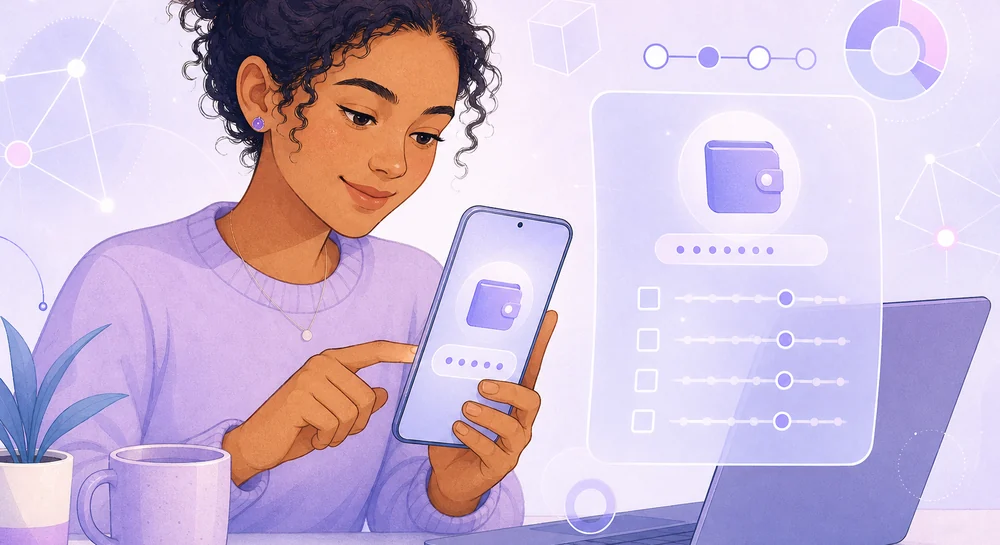
By default, the same MetaMask wallet creates several addresses (“accounts”) under one seed phrase — you can add them using the “plus” button in the interface. They can all be restored with the same phrase, so you do not need to record each account’s details separately.
What is a seed phrase and how to store it properly
A seed phrase (recovery phrase) is a sequence of 12 (less commonly 24) English words that mathematically encodes all the private keys in your wallet. Anyone who knows this phrase can fully restore the wallet on any device and control all the funds in it — so it must be stored offline, somewhere inaccessible to others and the internet.
A seed phrase works like the only key to a safe: the app password protects only access on a specific device, while the seed phrase provides direct access to the funds, bypassing all other layers of protection. That is why stealing it is the main goal of phishing sites and malware targeting crypto wallets.
Never store your seed phrase in these places
A screenshot on your phone — it is synced to the cloud and becomes vulnerable if your Google/Apple account is hacked. Notes on your phone or in your email — they can be read by anyone who gains access to your device or mailbox. Cloud storage (Google Drive, iCloud, Dropbox) — the same risks, plus leaks from the services themselves. Messengers (in your “Saved Messages” or a chat with a friend) — messages can be intercepted or the server can be hacked. No official MetaMask, exchange, or support representative will ever ask for your seed phrase — it is always a scam.
Proper storage options are all offline:

Check your work before closing the phrase window
Compare the recorded words with those shown on the screen at least twice, paying attention to the order — it is critical, and rearranged words will produce a different wallet. Keep the phrase away from cameras, prying eyes, and photos of your desktop. Most importantly, MetaMask shows the phrase only once when creating a wallet; if you did not save it, there is no standard way to view it again after losing the record.
If your seed phrase has been compromised — for example, you entered it on a phishing site by mistake — the only correct action is to create a new wallet with a new phrase as quickly as possible and transfer all funds from the old address to it. Changing the app password will not help in this case, because the password does not protect against someone who already knows the seed phrase.
How to import an existing wallet into MetaMask
An existing wallet is restored using the “Import an existing wallet” button on the welcome screen: enter the 12- or 24-word seed phrase in the correct order and set a new password for this device — MetaMask will then regenerate the same addresses and display the full balance.
This is necessary in three cases: you are installing MetaMask on a second device (for example, on a phone if you previously used only a computer), you are reinstalling the browser or changing computers, or you accidentally deleted the extension or app and want to regain access to the wallet.
If the balance does not appear after import
This almost always means one of two things: either the phrase was entered incorrectly (in which case MetaMask created a new, empty wallet with a different address instead of restoring the old one), or the wrong network was selected in the interface — for example, the funds were on Polygon while the Ethereum network is open. Check both possibilities before panicking: the funds themselves do not disappear; they remain on the blockchain at their original address.
You can import a wallet an unlimited number of times on any number of devices—this does not “move” the wallet, but merely opens parallel access to it. The old device will continue to have access to the same wallet unless you manually deleted its data. If the device was lost or stolen, the only way to secure the funds is to transfer them to a new wallet with a new seed phrase as soon as possible, because access cannot simply be “revoked” from the lost device: the password is already stored locally there.
How to add a network to MetaMask (BNB Chain, Polygon, and others)
Additional networks are added through the “Networks” settings section using the “Add network” button: either manually, by entering the network parameters—RPC URL, Chain ID, and coin symbol—or in one click through the Chainlist.org website, which automatically fills in the correct data for hundreds of networks.
By default, MetaMask is configured for the Ethereum Mainnet, but most current projects now operate on other, cheaper networks—BNB Chain, Polygon, Arbitrum, Optimism, Base, and dozens of others. Each requires separate addition to the wallet: without it, MetaMask will not show either the balance or the option to send a transaction on that network, even if the wallet address is technically compatible.
How to add a network through Chainlist
The fastest and safest way is through chainlist.org: the site retrieves data directly from an open network registry and automatically enters it into MetaMask, eliminating manual input errors.
How to add a network manually
Manual addition is required if the network is not available on Chainlist—for example, for new or lesser-known blockchains. In MetaMask settings, open “Networks” → “Add network” → “Add a network manually” and fill in the fields: Network Name (any name), New RPC URL (the network node address, usually available on the project’s official website), Chain ID (the network’s unique numerical identifier), Currency Symbol (for example, MATIC for Polygon or BNB for BNB Chain), and, optionally, Block Explorer URL.
Use RPC URLs only from official sources
A fake RPC URL can technically display incorrect balances or alter transaction data. Use addresses from the project’s official website, documentation, or a trusted registry such as Chainlist—not random forums or comments.
| Network | Chain ID | Symbol | Most common uses |
|---|---|---|---|
| Ethereum Mainnet | 1 | ETH | Core DeFi protocols and NFTs, high fees |
| BNB Chain | 56 | BNB | Low fees, broad exchange and DeFi ecosystem |
| Polygon | 137 | MATIC/POL | Cheap transfers, games, mass-market NFT projects |
| Arbitrum One | 42161 | ETH | Fast and cheap transactions with Ethereum compatibility |
Adding a network does not create a new wallet or change the seed phrase—the address remains the same across all Ethereum-compatible networks (EVM networks). Only the blockchain that MetaMask currently sees changes, along with the balance and tokens it works with.
How to check that MetaMask is installed and working correctly
The installation was successful if MetaMask opens a screen with the wallet address and balance, the extension icon (or app) responds to clicks without errors, and when you try to connect to a test website, MetaMask correctly offers to select an account and network.
Check the following points in order—it will take a couple of minutes and dispel most doubts that something has been configured incorrectly.
Make a test transfer for a small amount
The most reliable way to make sure everything works is to send yourself or a friend a minimal amount (for example, the equivalent of one or two dollars) and wait until it appears in the “Activity” tab with the “Confirmed” status. This confirms that the address, network connection, and wallet as a whole are all working correctly before you transfer a large amount there.
If the balance is not displayed even though you are sure the funds are at this address, the cause is almost always the selected network: check that the network where the tokens are held is open (for example, USDT on BNB Chain will not be visible if Ethereum Mainnet is open in MetaMask). Another common case is that the token has not been manually added to the tracked list: click “Import tokens” at the bottom of the asset list and add the token contract address if it did not appear automatically.
Frequently asked questions
Can MetaMask be used without installing it on a phone, only through a computer?
Yes, the mobile app is not required. The browser extension is fully self-contained for sending, receiving, and connecting to DeFi sites—the mobile version is only needed for convenient management from a phone when a computer is not available. Many users work exclusively with the extension for years and never install the mobile version—this does not limit functionality or reduce wallet security.
What happens if you enter your seed phrase on someone else’s or a suspicious website?
Most likely, the funds will be stolen within minutes of entering it—scammers’ automated scripts monitor such forms and transfer the balance to their own address almost instantly. No legitimate website or service will ask for your seed phrase—you should enter it only inside the MetaMask app itself when importing a wallet, and nowhere else.
Can MetaMask be installed in several browsers on the same computer?
Yes, there are no restrictions. Simply install the extension in each browser and import the same wallet using the seed phrase—all copies will show the same balance and address because the data is stored on the blockchain, not in the browser itself. The password is set separately for each installation and can be different.
Do you have to pay anything for installing MetaMask itself?
No, installation and wallet creation are completely free, regardless of how many wallets and accounts you create. You only pay network fees for transactions and, in some cases, for the built-in token swap within MetaMask itself—a detailed breakdown of the fees is provided in a separate section above.
What should you do if the browser blocks the extension as unsafe during installation?
Make sure you installed the extension from the official store, rather than from a file downloaded from a third-party website. If the warning appeared when installing from the Chrome Web Store, try updating the browser to the latest version—outdated versions sometimes verify extension digital signatures incorrectly and display a false warning. If the browser is managed by an organization, the block may be imposed by its security policy—in that case, contact the system administrator rather than trying to bypass the restriction manually.
How many wallets can be created in one MetaMask, and does a beginner need this?
There is no technical limit on the number of wallets (secret recovery phrases) in one MetaMask—you can add as many as you like through “Add wallet” in the settings, and each will have its own seed phrase. Beginners usually do not need this: for most tasks, one wallet with several accounts inside it is enough, while multiple seed phrases make storage more complicated and increase the risk of mixing something up or losing one of the records.
Can access to MetaMask be restored if both the password and seed phrase have been forgotten?
No, in this case access to the funds is lost permanently. MetaMask has no support service capable of restoring a wallet without the seed phrase—this is how non-custodial wallets work: the developer does not physically store a copy of your keys and cannot provide one.
The most common mistakes made when installing MetaMask
The most common mistakes beginners make are installing the extension from a fake website, storing the seed phrase in an unsecured form (as a screenshot or in notes), and using the wrong network, which makes it seem as though the funds have “disappeared.” All three can be prevented by the checks described in the sections above, but in practice, they are responsible for most stolen funds among new users.
| Mistake | Consequence | How to avoid it |
|---|---|---|
| Installing a fake extension from an advertisement in search results | Complete loss of funds the first time the seed phrase is entered | Access only through metamask.io and verify the extension ID |
| Storing the seed phrase as a screenshot or in notes | Theft if the cloud account, synchronization, or device is compromised | Write it down on paper or metal and store it offline |
| Using the wrong network | The balance appears to have “disappeared”; errors during transfers | Check the selected network before every operation |
| Sending a token on the wrong network for the counterparty | Often irreversible loss of the transferred funds | Verify the recipient’s network before sending and start with a test amount |
| Approving an unlimited allowance for a smart contract | The contract (or an attacker who has compromised it) may withdraw the entire token balance | Check and limit allowances in the settings, and revoke unused ones |
| Using the same password as for other services | Wallet compromise through a password leak from another website | A unique password for MetaMask, a password manager |
The “support” scam deserves separate mention: scammers create fake MetaMask support accounts on social networks and messengers. These accounts are the first to contact users who have encountered a problem and ask them to provide their seed phrase “for diagnostic purposes” or follow a link to “synchronize the wallet.” MetaMask does not have live chat support and never initiates conversations itself—any such message is a scam, regardless of how official it looks.
Address error during the first transfer
Beginners often copy the recipient’s address from an unreliable source—for example, from a chat where a malicious extension replaces the copied address with a scammer’s address—and do not check it again before sending. Always compare at least the first 4 and last 4 characters of the address with the original before confirming the transfer. This is the most common replacement technique, known as “clipboard hijacking.”
Another common mistake is installing several similar wallet extensions at once and confusing them. If MetaMask, its clone, and another similar wallet are installed in the browser simultaneously, websites may sometimes offer to connect to the wrong extension—the one the user considers secondary. Keep only the wallet extensions you actually use in your browser, and periodically check the list of installed extensions for unfamiliar entries.
How to protect MetaMask from hacking and phishing
MetaMask’s main protection is not a technical setting inside the app but a set of behavioral habits: never enter your seed phrase on third-party websites, check the address before every connection, limit smart contract permissions, and use a hardware wallet for large amounts.
How to recognize a phishing website
A phishing website almost always imitates the interface of a genuine DeFi project or MetaMask itself and asks you either to enter your seed phrase directly into a form or to sign a transaction granting unlimited permission to withdraw tokens. The first sign of a fake is the domain: it resembles the original but contains a changed letter, a hyphen, or a different domain zone (.net instead of .io, or an extra letter in the name).
Why you need a hardware wallet and when it is justified
A hardware wallet (Ledger, Trezor) stores private keys on a separate physical device and connects to MetaMask as a “cold” signing source. Even if the computer is infected with malware, the keys never leave the device, and every transaction must be physically confirmed with a button on the wallet itself. This makes stealing funds significantly more difficult technically, although it does not eliminate the risk of phishing entirely: it is still possible to sign a malicious transaction on a hardware wallet if you do not check exactly what you are signing.
Free, quick to set up, and convenient for everyday small amounts and frequent transactions. The keys are stored on an internet-connected device, which leaves a theoretical risk if the device is infected with a virus.
Costs $60–150, and requires a separate purchase and setup. Suitable for storing large amounts and long-term investments—the keys never come into contact with the internet.

Another measure is periodically revoking approvals granted to smart contracts. Each time you allow a DeFi protocol to spend your token, that permission remains active indefinitely until you revoke it manually—even if you no longer use the protocol. You can check and revoke unused permissions through services such as revoke.cash by connecting the same wallet.
A minimum set of security habits
A unique MetaMask password; keep the seed phrase offline only; check the domain before every connection; read the contents of the pop-up before confirming; use a hardware wallet for amounts whose loss would be significant. This set is sufficient to prevent the overwhelming majority of real-world fund-theft scenarios affecting individual users.
How much MetaMask costs to use and where the fees come from
MetaMask itself is free: installation, creating an unlimited number of wallets, and basic use cost nothing. You pay for only two things: the network fee (gas) for each transaction and, if you use MetaMask’s built-in token swap, an additional markup charged by the service on top of the market rate.
The network fee (gas) does not go to MetaMask but to the blockchain validators who process the transaction. Its amount depends on the selected network and its current congestion. On Ethereum Mainnet, a transfer can cost from one and a half to several dozen dollars during peak hours, while the same operation on Polygon, BNB Chain, or Arbitrum usually costs a fraction of a cent—one reason to configure additional networks as described above.
The built-in token swap (the “Swap” button inside MetaMask) charges its own fee of 0.875% of the swap amount, in addition to the network fee and the rate offered by the selected exchange aggregator. This is the price of convenience: the swap takes place without leaving the site, but for frequent or large swaps it may be more cost-effective to use a DeFi exchange directly, where MetaMask’s fee is not charged, although gas costs remain the same.
Buying cryptocurrency with a bank card directly in MetaMask (the “Buy” button) also incurs a fee. It is charged not by MetaMask itself but by the third-party payment provider processing the transaction, and is usually higher than buying directly on a major exchange.
What to do if MetaMask will not install or open
The problem is most often resolved in one of three ways: restarting the browser after installation, updating the browser to the latest version, or disabling a conflicting extension. Most MetaMask installation failures are technical and are not related to the wallet itself.
The extension was installed, but its icon did not appear
The MetaMask icon may be hidden in the browser’s general extensions menu. In Chrome and Edge, click the puzzle-piece icon to the right of the address bar, find MetaMask in the list, and click the pin icon to keep it permanently on the toolbar. In Firefox, do the same through the extensions menu icon (a down arrow or three dots) next to the address bar.
MetaMask opens but gets stuck loading or displays a white screen
This is usually caused by a corrupted extension cache or a conflict with another installed wallet extension. Try the following in order: restart the browser completely (close all windows, not just the tab); disable other wallet extensions (Trust Wallet, Coinbase Wallet, Phantom, and similar ones), as they sometimes compete for the same page-injection API; clear the browser cache through the settings (this does not delete the wallet or seed phrase, which are stored separately in the extension data); if the problem persists, remove the extension and install it again, restoring the wallet with the seed phrase.
Make sure your seed phrase is backed up before removing the extension
Removing the extension erases local data, including an unencrypted copy of the settings. If the seed phrase has not been written down separately, access to the wallet will be lost irreversibly. Before deleting and reinstalling MetaMask to resolve a technical issue, make sure you have the recovery phrase on paper or another reliable storage medium.
The mobile app cannot be installed from the store
The causes are usually unrelated to MetaMask itself: insufficient free space on the device, an outdated operating system version (MetaMask requires a relatively recent version of iOS or Android), or regional restrictions imposed by the app store. Check the available space on your device, update the OS to the latest available version, and make sure the correct region is specified in the store settings.
If MetaMask conflicts with a website (for example, the “Connect wallet” button on the site does not respond), try refreshing the site after opening MetaMask, disabling ad blockers for that site — they sometimes block the wallet injection script — or checking whether the site is requesting an outdated connection API version, which can happen with DeFi projects that have not been updated for a long time.
Frequently asked questions about installing MetaMask
Do I need an email address or phone number to install MetaMask?
No, registration is not required. MetaMask does not request an email address, phone number, or any personal data when creating a wallet — only a password for that device and confirmation that you have saved the seed phrase.
Can MetaMask be installed on an iPad or Android tablet?
Yes, the MetaMask mobile app can be installed on tablets just as on smartphones through the App Store or Google Play and works identically, including the built-in Web3 browser.
Can I use MetaMask without installing it, only through the website?
No, there is no fully functional web version that works without installation. MetaMask always operates as a browser extension or a standalone app — this is essential because the keys must be stored locally on the device rather than on a remote server.
What happens to the wallet if MetaMask is deleted from the device?
The funds do not disappear — they remain on the same address in the blockchain. Access is restored by reinstalling MetaMask and importing the wallet using the saved seed phrase, so keeping it safe is critical even before deleting the app.
Is it safe to install MetaMask on a work or shared computer?
It is not recommended. On a shared or work computer, other users could potentially gain access to browser data, while corporate monitoring may record keystrokes. For personal funds, it is better to use a personal device with your own account.
Can I transfer my existing MetaMask settings to a new computer without the seed phrase?
No, the only official transfer method is importing via the seed phrase. MetaMask has no “one-click” settings export feature without the recovery phrase, and any service offering this should be considered suspicious.